See it before you talk to anyone.
HaulOps shows roll-off operators where every can is and how long it has been out. Watch the 90-second walkthrough, then see the screens in the order your day goes. Everything shown is sample data.
90 seconds. Captions are on screen, so you can watch it on mute.
What you see the moment you open it
Most operators know how many cans they own. These three screens show where each one is and how long it has been there, so you can see it without calling the office.
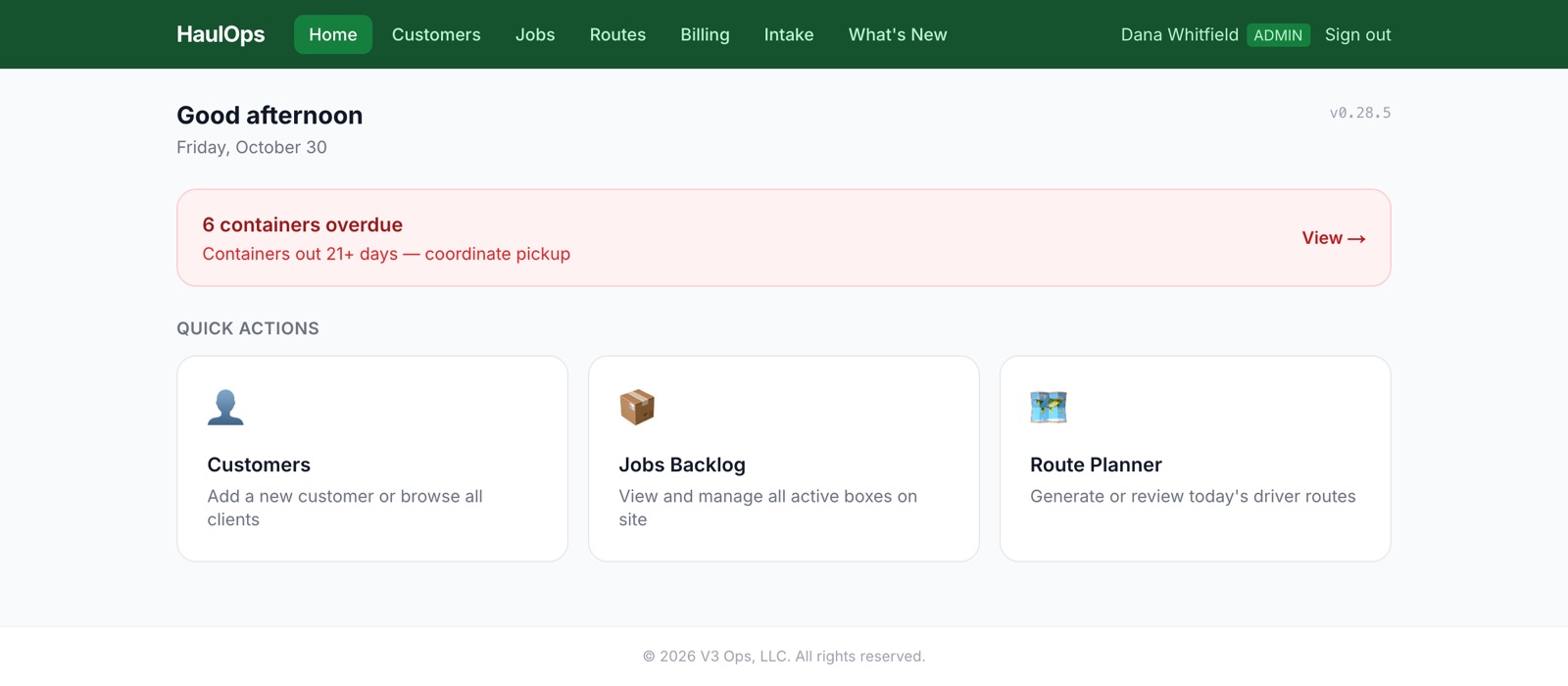
The day starts with what is out too long
Open HaulOps and the first thing on the screen is the count of containers out past their rental period. You do not go looking for them.
Sample data. Tap to enlarge.
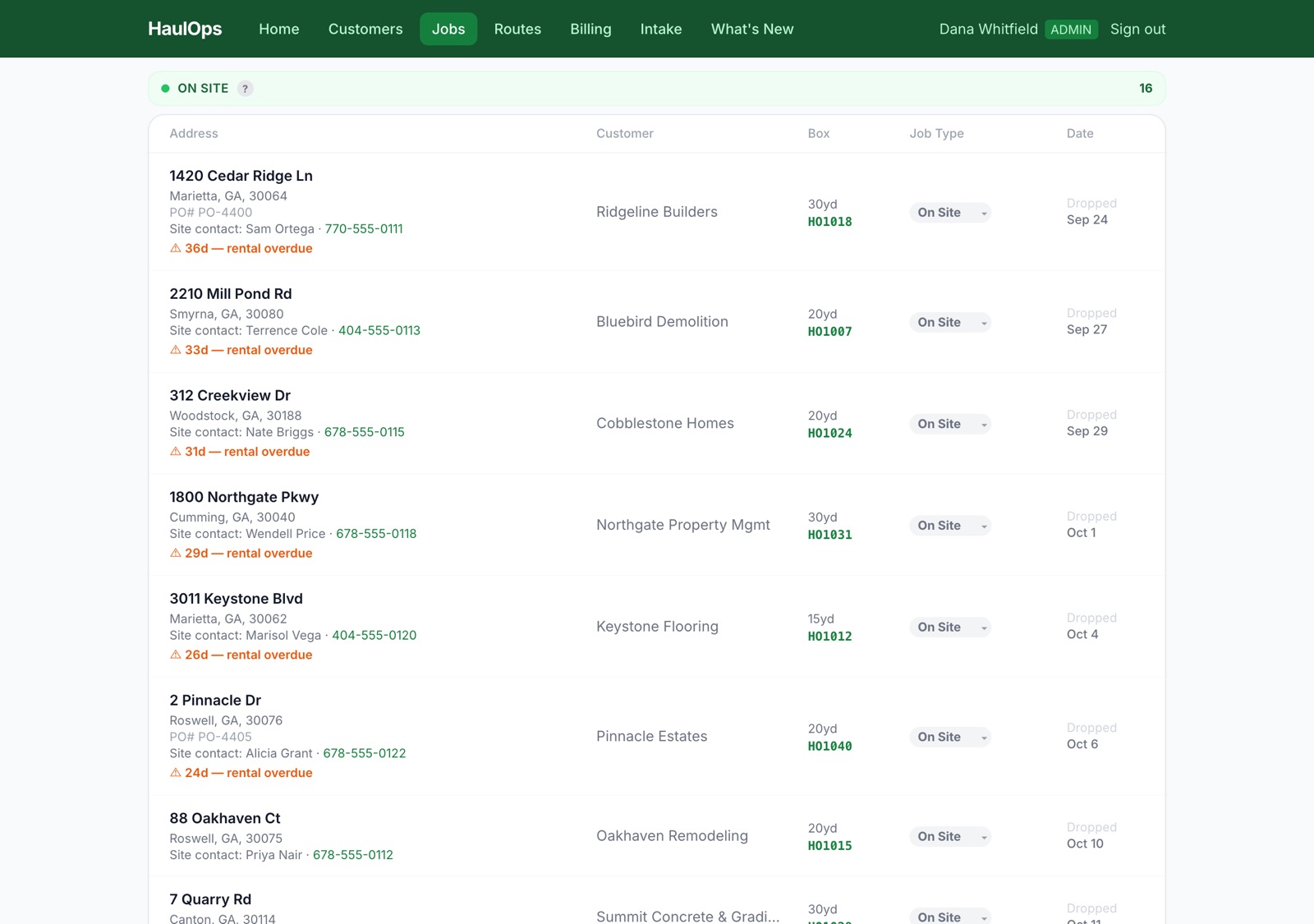
Every box, every site, how long
One list of every box on site, oldest first, with days out. Anything past its rental period is flagged in orange, so a can parked on a finished job stops hiding.
Sample data. Tap to enlarge.
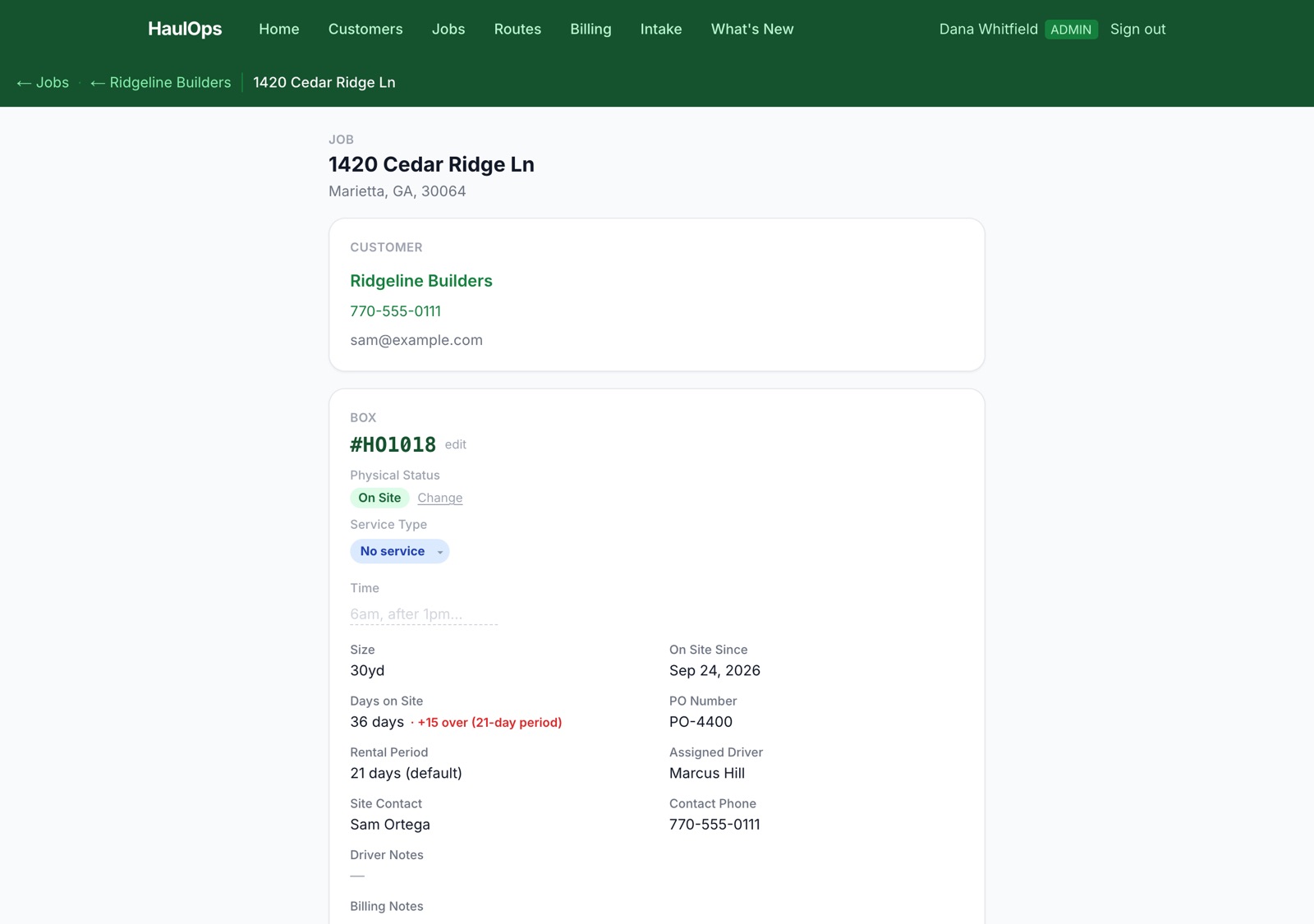
One box, the whole picture
Open any box to see who has it, which driver is assigned, when it went out, and how many days it is over. The rental period is set per customer, so there is a number to hold the conversation against.
Sample data. Tap to enlarge.
Then the jobs it does, in the order your day goes
From the first text of the morning to the invoice at the end of the job, in a form whoever runs your office can use.
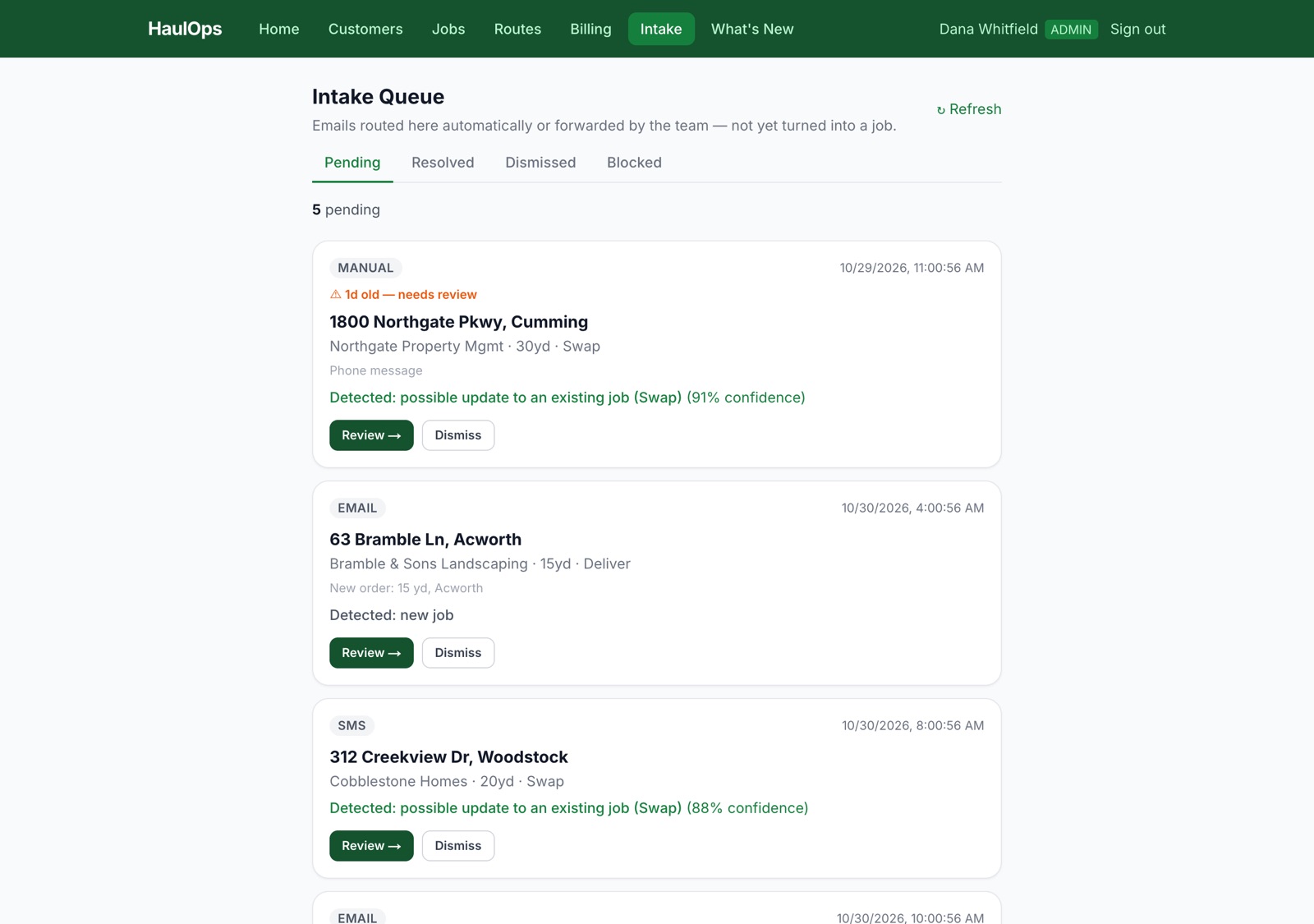
Texts and emails become jobs you confirm
Orders arrive as texts, emails and voicemails. HaulOps reads each one, works out whether it is a new job or a change to an existing one, and shows you its guess with a confidence level. Nothing becomes a job until you confirm it. Orders stop living in one person’s phone or head.
Sample data. Tap to enlarge.
One route per driver, overdue pickups flagged
Build the day’s route. Each stop shows the box number and size, overdue pickups are flagged, and you can move stops between drivers before you approve it.
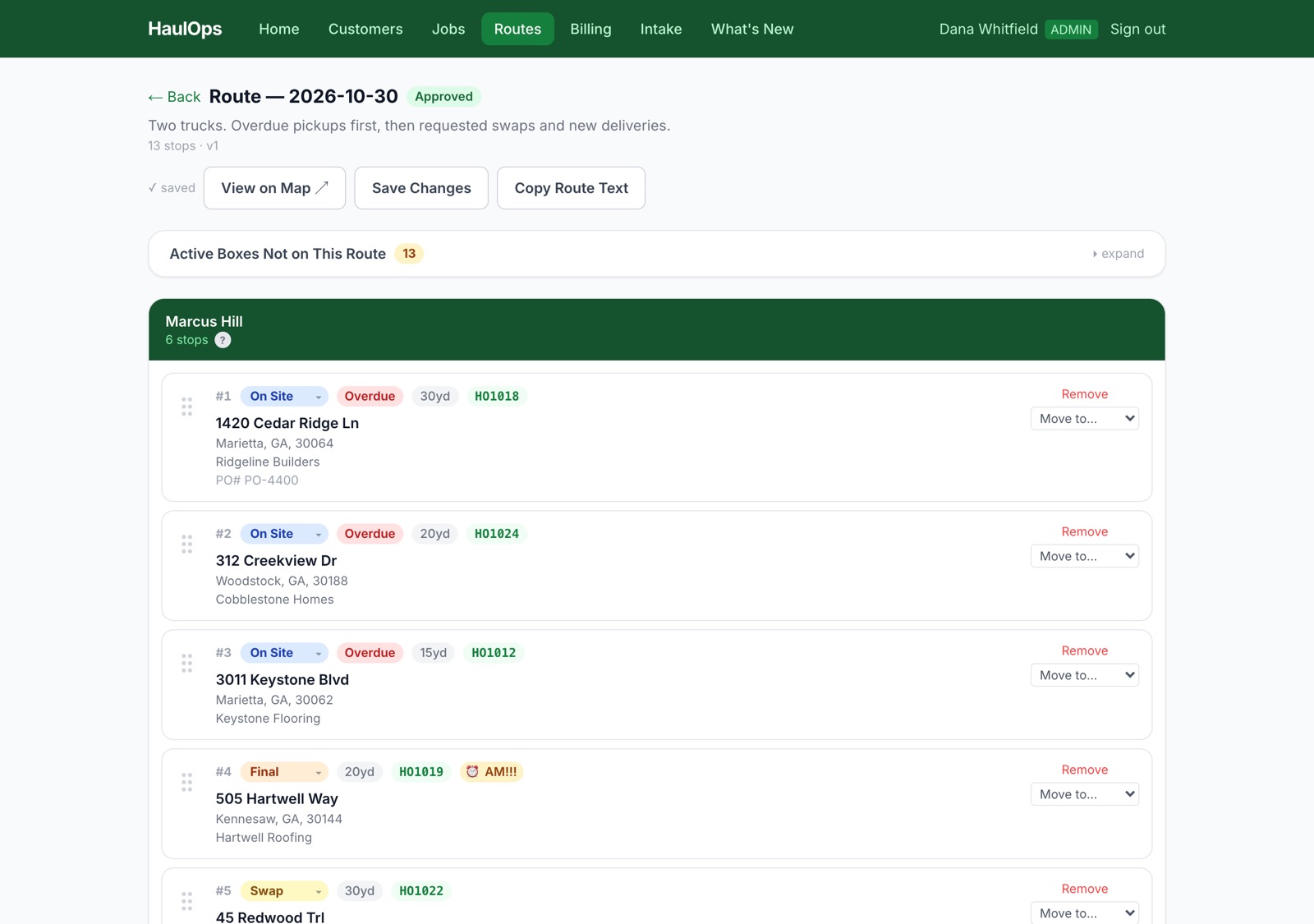
Sample data. Tap to enlarge.
The same route on a map
One color per driver, numbered by stop order. The lines show the order of stops, not driving directions.
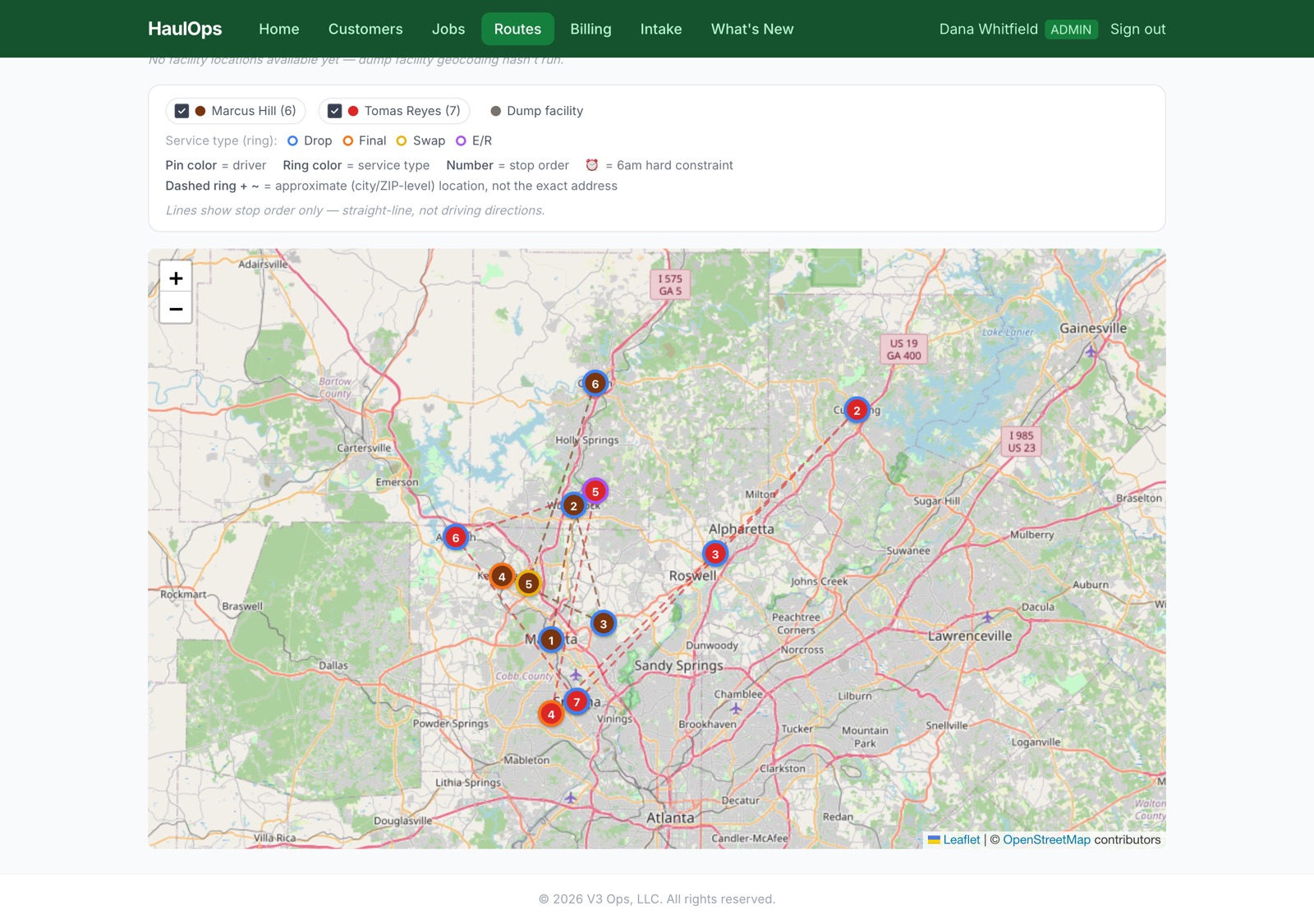
Sample data. Tap to enlarge.
What the driver sees on a phone
Today’s stops in order, with the box number, size and your notes on each one. Gate codes and “call before you arrive” live here instead of in a text thread.
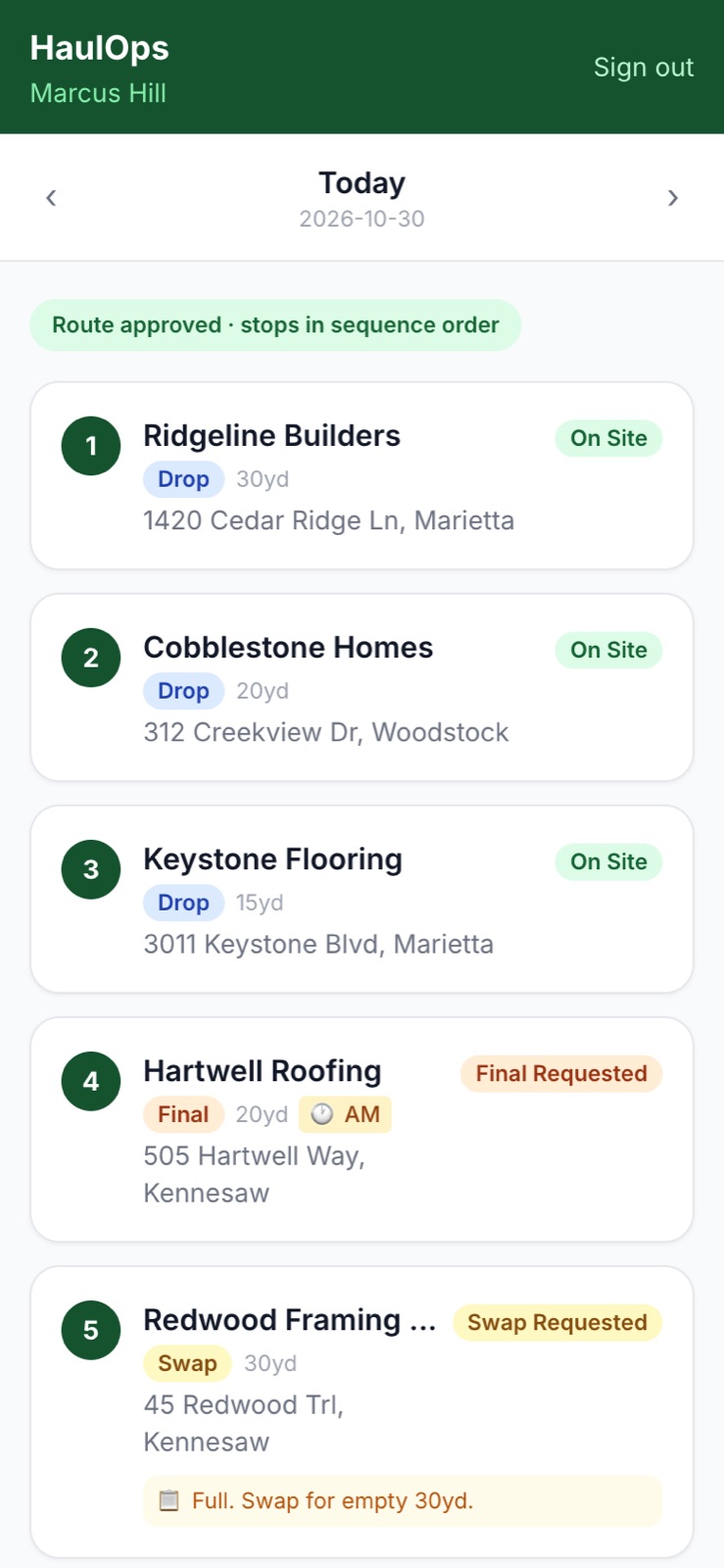
Sample data. Tap to enlarge.
Ticket, weight, days on site, invoice status
When a box is dumped, the ticket, weight, dump cost and days on site sit on one row, with checkboxes for ticket received and invoice sent. Billing stops depending on paper tickets and a file box.
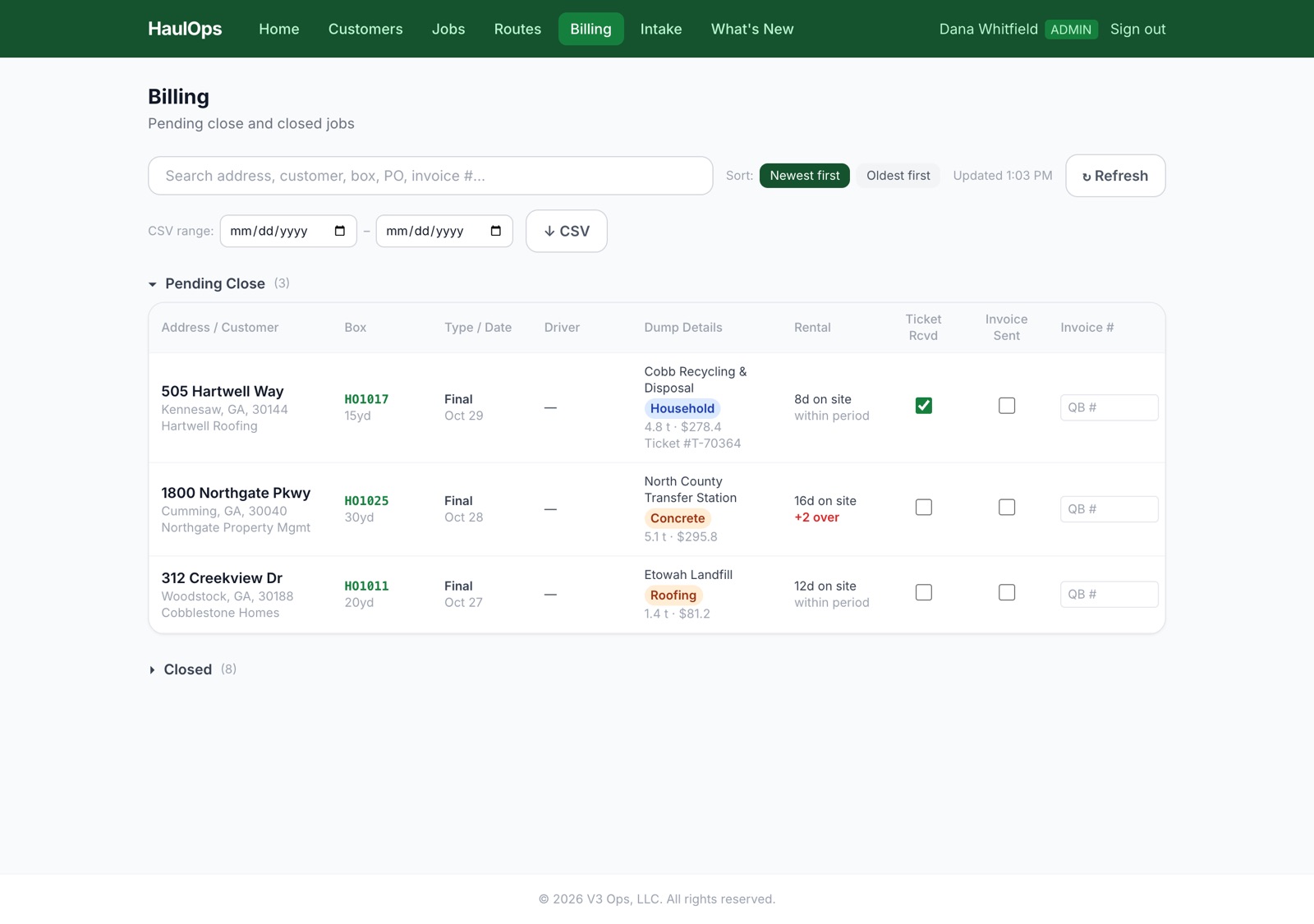
Sample data. Tap to enlarge.
What you are looking at
These screens come from the platform behind the Atlanta operator case study, shown here with invented customers, phone numbers and box numbers.
Your setup is built around how you already run things, not the other way around. Measured results are on the case study, from a real operator. None are claimed on this page.
Want to see what it shows about your cans? The Container Check is a free 20-minute call, not a demo.